Janome recently sent me their new Skyline S9 embroidery/sewing machine to play with and review...and play I did, and have enjoyed the machine very much!
This machine is a part of their affordable S series, and is the first in this series to combine sewing and embroidery on one machine. The machine is feature rich, yet has the ease of use you expect from a Janome machine--with built-in tutorials to get you up and running. It also comes with a comprehensive manual that is indexed well, with pictures and diagrams, to let you know how to use all of the features. One of my favorite features...is it's wi-fi capability. This is a machine that speaks the language of the 21st century. You can send designs to the machine wirelessly via your i-pad. Because the machine is so feature rich, I wasn't able to test out every feature, but I wanted to make sure I at least tested out the basic sewing stitches, decorative stitches, and embroidery, and changing basic settings through the touch screen. I also purposely created a project that had many layers to see if this machine could be a reliable "work horse." My conclusion...you're going to love this machine.
To test some of the machine's basic features, I created designed and pieced quilt. (Heads up, this quilt design will be available as a FREE downloadable project on the Janome website later this month.) For this project, I used basic straight stitches and listened to the machine's soft hum, as I pieced. The machine is smooth to operate, and has low vibration, which makes it nice to use. The LED lights were great for lighting up my project so I could be accurate with my piecing. The machine allows you the ability to operate it with a traditional foot pedal, or a touch stop/start button. A convenient knee lift is included with this machine for raising the presser foot.
You can also adjust the speed via the slide control, to prevent you from being to "heavy with your pedal" if you need to sew a little slower. I liked the convenient inclusions of the locking stitch, reverse, and cut-thread buttons. I also found the automatic presser foot lift feature quite useful in streamlining the process on my project. I would have loved to have had a completely automated needle threader like the Janome MC 15000, but the manual needle threader did the job well, and was quick. (This is where you save some money on the machine.) The workspace is larger than any of the other in the S class, at 8.25"x13" of bed space and 8.25" to the right of the needle. This was more than adequate space for the projects I chose. I went through lots of thread piecing this large quilt and so I got to know the bobbin winder. It's super simple, and if you forget how to use it, simply press on the question mark on the user interface and you will be directed to a tutorial.
For my second project, I tested out the embroidery side of the machine. You need to attach the embroidery arm unit, and switch out the needle plate before proceeding into embroidery mode. It doesn't take long to switch over, and I went back and forth between sewing mode and embroidery mode a few times with ease.
For this project, I created a matching pillow for the quilt. I selected one of Anna Maria Horner's on-board embroidery designs (yes, get excited, because 40 of her designs are included on this machine,) and selected some gorgeous thread from her embroidery kit specially designed for use with the S series. This thread is yummy scrumptious--yummy colors, and a scrumptious luxurious sheen in a strong polyester thread. This particular design was comprised mostly of satin stitches which really show off the sheen of the thread. I didn't have a single thread break while stitching this beautiful design.
The Skyline S9 includes the embroidery arm and three hoops--the largest being 170mm X 200mm. There are also hoop magnets included if you have a project where that kind of attachment works better over traditional hooping. I enjoyed watching the mesmerizing stitch sequences, and was pleased with the intricate detail that the design and the machine provided. This design takes 21 minutes and the screen shows you exactly which stitch you are on and how much more to go. You can resize your embroidery using the touch-screen interface, you can also reposition the design and change stitch density.
For fun I added some decorative stitching to my pillow project. After testing out several of the satin and decorative stitches, I chose to feature one of the appliqué stitches as I wanted the embroidery design to stand out and not get busied by a decorative stitch. The decorative stitches would be super fun for another project though. I played with the spacing and size on this appliqué stitch, via the touch screen, and found a setting perfect for my project.
When assembling the pillow, I decided to try out how the machine would do with a thicker project. So I purposely chose to quilt the design and add welting trim to see if the stitches were consistent even when things got a little tougher. I also designed the back of the pillow so it could easily accept a pillow form, by creating a split overlap with a rolled hem. This design meant that at one point, I would be sewing through 6 layers of fabric plus the welt edge, making that 8 layers, not to mention the quilt batting changing the thickness as well. The Skyline S9 had no issues with this extra workload. I used the included zipper foot to help aid in attaching the welt, which made the welt placement easy.
I was having so much fun sewing these projects, I decided I'd get another project done. I made a Christmas advent calendar to delight my three kiddos. This was a simple panel kit from Riley Blake, that I've had for a while, but just hadn't finished yet. I thought this would be the perfect time so the kids could have fun with it this December. I enjoyed adding some detail to this project with little accent stitches and a little bias tape. The pockets are filled with adorable "softies" that have ideas for different activities each day in December.
These were just some of the features that I tested. There is so much more to this machine than what I played with--including the ability to design your own custom decorative stitches! If you are looking for a great embroidery/sewing combo machine at a nice price point, this would be a good one to consider. You can read more about the features of this machine on the Janome website here.
By the way...the quilting on my quilt was done by Melissa Kelley of Sew Shabby Quilting. She does a beautiful job!
Showing posts with label Advent Calendar. Show all posts
Friday, December 02, 2016
Monday, September 16, 2013
Customizable Advent Calendar + Silhouette Sale!
Good Morning! Today we would like to share the new Customizable Advent Calendar
that will be hitting the Silhouette store this week!

You can fill the pockets of the Customizable Advent Calendar with one of the sets of Advent Calendar Cards that will also be available this week through the Silhouette Store!
One set has Biblical verse references that tell the story of Jesus' birth.
Another set includes Bible and Book of Mormon verses that tell the story of Jesus' birth.
And the last set has 65 family fun and charitable ideas to put you in the Christmas spirit! This set is a lot of fun as it really allows your family to choose the cards that fit your family's style! The cards on this set do not have any dates so you can move cards around during the month to work with various parties and other activities that you want to match with the cards!
There will be Custom Title Blocks for the calendar that will fit in the space above the "25" pocket and there also be a few coordinating borders for the titles that you can run along the top of the calendar! One calendar with many looks, and so many ways to use it!
We can't wait to see how you create your family calendar so be sure to share it with us!
You can provide a link in the comments below, share it on our Facebook Page, or send it to us in an email (social.samanthawalker@ gmail.com)!
* * * * * * * *
Here are some supplies that you can use to make today's project, and other fun stuff.
Get Amazon Prime Membership! Enjoy Free 2-day Shipping on Prime products, plus access to Free digital content like videos, books, and more!
Labels:
Advent Calendar,
Customizable Advent Calendar,
Samantha walker,
samantha walker designs,
Silhouette,
Silhouette Sale
Monday, March 25, 2013
Train Tutorial by Jamie Cripps
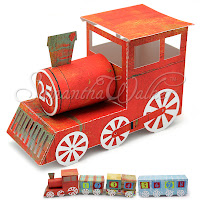
Good Morning! Jamie back with you today with a quick tutorial using Samantha's 3D Advent Calendar Train Engine!
I am only walking through one of the train pieces today as they all assemble similarly, but if you have questions on the other pieces, just leave a comment on this post or shoot us an email at social.samanthawalker@gmail.com!
This train is an advent calendar which is perfect for counting down for Christmas, Birthday's, even family vacations (can't you just picture a Disney train count down!)...but it is also perfect for table decorations or even birthday favors where each kid could take a compartment! The ideas are endless which is one of the reasons I love these files so much!
Okay, so on with the tutorial!
1. First you will need to cut out all the pieces. I am using a double-sided cardstock so that I can alternate the pieces for different colors. Once you have your pieces cut, pull out the main train box and fold on all the score marks.2. Place adhesive on the sides of the train front (where the grill is) then align the sides and adhere the edges down.
3. Your train front should look like this.
4. Next place adhesive on the back side flap and adhere the edges together.
5. Place adhesive on the front side flap and adhere.
6. Your train back should look like this now.
7. The top of the back compartment has a couple score marks, you will want to fold so the you have a "peak" on both sides of the roof. You can either place adhesive on the tabs at this point or you can just close the box (depending on if you are putting something inside or not).
8. Next gather the small circle with tabs and the long piece with a slot in the center. Fold the tabs of the circle down as shown then run the long piece along the edge of your desk to give it a curve.
9. Place adhesive on the tabs of the circle and then begin adhering it to the other piece.
10. Your piece should look like this now.
11. Place the number piece on the center of the circle.
12. Next you will be placing this piece on the front of the train. There is a slot that is already cut that the two tab pieces will push through. I slightly angle mine on one end then push through.
13. Next we are going to add the stack. I place a little adhesive in the center of the piece and then fold the piece in half on the score line leaving the two bottom flaps folded slightly.
14. Push the stack down on the circular tube in the slot provided.
15. Next grab the long rectangle piece and place adhesive on the back side.
16. Adhere the piece on the bottom of the train to cover the wheel holes.17. Next place adhesive on the wheels (circle parts only) and adhere them to the train.
18. Continue adhering the wheel pieces until they are all in place.
19-20. Your train should look like this now!
21. These are the extra pieces I had. Since I used a double sided paper I just turned my wheels over to make them the green paper so I did not use the wheel covers or the wreath/bow piece.
Isn't this cut so much fun!?
Below we have labeled extra pieces in the cut file to show what they are for to help explain the cars better.
Then the long train car image below shows the dividers in place:
Just click on the image below to get your train pieces!
Thanks so much for stopping by!
Labels:
Advent Calendar,
jamie cripps,
Samantha walker,
samantha walker designs,
Silhouette,
Train,
Train Engine,
tutorial
Thursday, November 29, 2012
Preparing for the Count Down! by Jamie Cripps
Have you seen all of the amazing Advent Calendars in Samantha's Silhouette Online Store? I am just so in love with each and every one. We may end up having one in each room this year!
They are fabulous, right!?
And remember, they are on sale through midnight tonight (11/30)
for 50% off!
And remember, they are on sale through midnight tonight (11/30)
for 50% off!
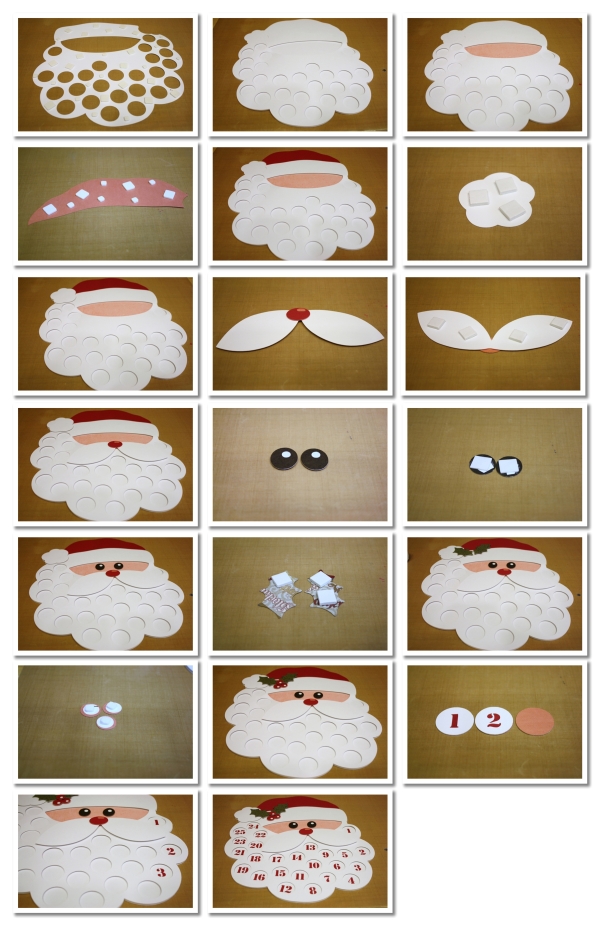
It's Jamie back with you and today I am working with the Santa Beard Advent Calendar and have a quick tutorial to share! Just have a look at all the cuteness this guy brings...
We will be using cotton balls to cover up the days so once we hit Christmas, his beard will be full and fluffy!
This file comes with a couple different options for the days. You can either cut them or do a Print and Cut. I chose to work with the cuts for this one because I wanted my numbers to be the same red as Santa's hat!
Tutorial:
Tutorial:
To start, place the cut file on your mat then click on it to select it. Once it is selected, right-click and choose "ungroup".
Next, go up to "File" and select "New" to open a new window. We will open up four windows during this tutorial.
Copy the background, the mustache, and the hat ball to the new page. I color mine white so I know what color to cut the items in.
Go back up to the "File" and select "New" to open another new window.
Go back to your original window and copy the beard piece then paste it into your new window. Again, I colored the piece white.
Go back up to the "File" and select "New" to open your 3rd new window.
Copy the numbers from the original window to the 3rd new window and color the items white if desired.
Go back up to the "File" and select "New" to open your last new window.
Copy the items shown and group them with like items so you can place your paper easily. I have color coded my items to help me with my paper placements!
Cut all of the items, four pages in total then
1. Place foam adhesive squares on the back of the beard.
2. Adhere the beard to the base.
3. Apply glue to the back of the face piece then adhere as shown.
4. Place foam adhesive squares on the back of the Santa hat piece.
5. Adhere the hat on the base as shown in the photo.
6. Place foam adhesive squares on the back of the hat ball.
7. Adhere the hat ball on the base as shown.
8. Assemble the nose pieces and adhere to the mustache.
9. Place foam adhesive squares on the back of mustache.
10. Adhere the mustache on the beard as shown.
11. Cut small pieces of white cardstock and apply behind the black eyes.
12. Place foam adhesive squares on the back of the eyes.
13. Adhere the eyes on the face piece as shown in the photo.
14. Place foam adhesive squares on the back of the holly leaves.
15. Adhere them to the Santa hat as shown.
16. Cut small pieces of white cardstock and apply them to the back of the holly pieces then apply foam adhesive squares on the backs.
17. Adhere to holly pieces as shown.
18. Adhere each white number piece to the red circles.
19. Apply adhesive to the back of each number then place it on the Santa base, pushing it under the beard.
20. Your project should look like this!
Thanks so much for stopping by today!
If you make one of the Advent Calendars, we would love to see them! Just link us up in the comments section or share it with us on Facebook!
Also remember that the Creative Team Call ends
tomorrow (12/1) so be sure to get your application in!
See all the details here: http://samanthaleewalker.blogspot.com/2012/11/announcing-samantha-walker-2013.html
Labels:
Advent Calendar,
Cheap Silhouette Files,
Christmas,
Friday Tutorial,
jamie cripps,
Samantha walker,
samantha walker designs,
Silhouette,
silhouette america,
Silhouette Sale,
tutorial
Monday, November 12, 2012
Advent Calendar Stand and Block Tutorial
Good morning! Jamie with you and today I am going to walk you through how to assemble the Advent Calendar Stand and Blocks! You can find these files in Samantha Walker's Silhouette Store
There are two different versions of stands, the Santa and the Snowman and then the cubes work with both sets...have a look!
Today I am working with the Snowman Advent Calendar Stand and the Advent Calendar Blocks.
Stand Tutorial:
1. Cut out the Snowman Stand
2. Fold on all the score marks
3. Plus double-sided adhesive on both of the small ends as shown.
4. Remove the adhesive tape and fold the Snowman cut-out piece down.
5. Remove the adhesive tape on the other end and fold it back and secure it on the Snowman piece as shown.
6. This is a side view of the box.
7. Cut out the Snowman pieces in the colors you want.
8. Adhere the Snowman on to the stand.
Block Tutorial:
The cut file was designed to leave grouped together. You can just move the pieces you want to cut to the active area (white mat) on the screen.
To start, move the two box pieces on to the main mat area.
Next, move the background box pieces to the active mat area.
1. This is what your cut boxes should look like.
2. Fold on all the score marks.
3. With this box you can add adhesive to the side tabs if you would like. I have made my boxes without adhesive and they stay together without an issues. I plan to fold mine flat and pack away with my Christmas decor for next year! Fold up the two sides as shown.
4. Then fold up the next two sides.
5. Push the top piece down and tuck the flap inside the box.
6. This photo shows the white background pieces and the two completed boxes!
Next, move the number pieces over to the active mat area.
I cut my numbers out with one full sheet of patterned paper and then cut them again with two smaller pieces of pattern paper. You can customize the look with more or less cuts and papers!
We would love to see what you create with these files!
Be sure to link us up in the comments area!
Labels:
3D,
Advent Calendar,
box,
Calendar,
Christmas,
jessicasprague.com,
Samantha walker,
Silhouette,
silhouette america,
Snowman
Subscribe to:
Posts (Atom)